













































As the new school year rapidly approaches, device deployment is among the many key back-to-school tasks school districts must prepare for. While most districts have plenty of experience getting technology into the hands of students and staff, device deployment — even for ubiquitous tools like Chromebooks — can still cause headaches for district leaders at all levels, from school board members to IT teams.
To help you get a head start, we’ve gathered the best practices you need to know about deploying ChromeOS devices in schools, from pre-deployment setup to distribution day and beyond. This article will guide you through best practices for managing Chromebook deployment, addressing common obstacles, and covering essential topics such as setting up devices, coordinating with providers, and ensuring seamless integration with existing IT infrastructure.
By following these strategies, your school can optimize the use of ChromeOS devices, help close the student technology access gap, and minimize disruptions during the back-to-school transition.
Pre-Deployment Device Setup
The need for pre-deployment planning became abundantly clear after the hurried hand-outs that some districts faced when switching to 1:1 technology in schools virtually overnight. Your IT providers will need proper workflows to get Chrome devices in students’ hands and maintain accurate records for each organizational unit within your school district.
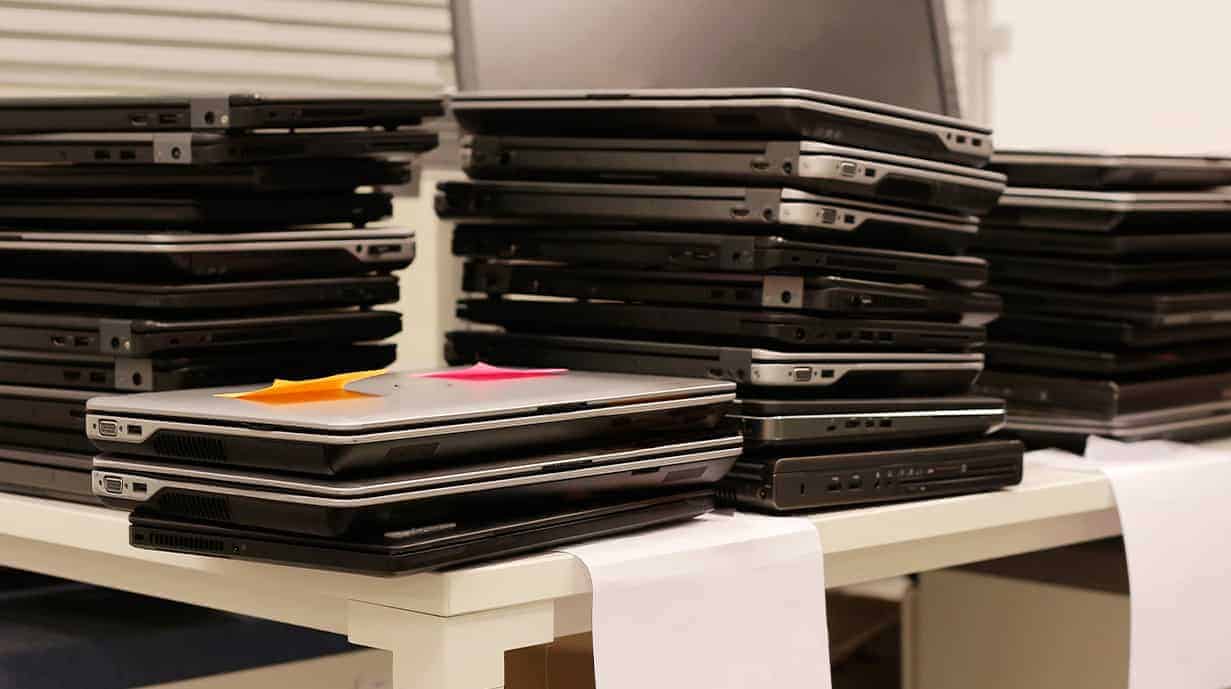
The first step of this process is simple: locate and count the Chromebooks you already have. Determine whether you’ll need any new devices, and be sure to set up the Google Admin console on any new Chromebooks you purchase before completing the other pre-deployment steps below.
Configure ChromeOS & Essential Apps
Unlike devices running Apple or Windows operating systems, Chromebooks use ChromeOS, which requires specific settings adjustments to ensure optimal performance and security. As a result, it’s crucial to configure the operating system and preload essential apps such as Google Classroom and Microsoft Office before handing off Chromebooks to students and teachers.
Appoint & Train Deployment Team
To ensure a smooth rollout, start by appointing a dedicated device deployment team and providing them with comprehensive training on the setup, distribution, and maintenance of ChromeOS devices. Your training should cover everything from initial Chromebook configuration to the logistics of their deployment so your deployment team is fully equipped to handle any deployment day challenges. It’s also a good idea to cover troubleshooting steps for common issues and give the team some details on the technical aspects of Chrome devices.
Setup Deployment Station
An all-in-one deployment station where Chromebooks can be unboxed, configured, and distributed makes deploying Chromebooks to students and staff a much smoother and more efficient experience.
It’s a good idea to equip this station with all the tools and resources you might need, including chargers, labels, and a reliable internet connection. Creating a well-organized and well-equipped station will speed up the deployment process and help ensure devices are ready for immediate use.
Create Support/FAQ Handouts
Support documents and FAQ handouts can be a big help when familiarizing students and teachers with their new Chromebook devices. These documents should cover things like step-by-step guides on basic operations, troubleshooting tips, and contact information for additional support. Keep in mind that you’ll likely need FAQs in languages other than English to meet the needs of all students.
Providing these resources will help streamline the learning curve for users while significantly reducing the number of support requests that your IT team has to deal with.
Day-Of Chromebook Deployment
On Chromebook deployment day, your IT teams will be responsible for distributing new devices to students and teachers, configuring final settings, and addressing any immediate technical issues. Remember that with your tech teams primarily focused on handing out devices, their bandwidth for other issues will be extremely limited, as setting up and activating multiple devices is a focus-intensive and time-consuming activity. Plan appropriately!
If possible, enable your IT teams to turn on their out-of-office messages or to prioritize only major disruptions so that their attention is entirely on distributing Chromebooks. Below, we’ll look into some ways you can make the day go as smoothly as possible.
Ensure a Streamlined Distribution Process
You can use several different methods to ensure a streamlined device deployment process. One option is using a white glove service to handle pre-configuration and enrollment before Chromebooks reach students. Zero-touch enrollment is another popular method, allowing IT teams to automatically enroll devices during the initial setup. Chromebook management software and tools like Go-box to automate bulk configurations can further speed up the process.
Barcode scanners enable rapid distribution by minimizing manual data entry. For districts that feature barcodes on their student IDs, the process is as simple as two scans — one for IDs and one for asset tags.
Offer an In-Person Support Desk
Offering an in-person support desk gives your students a secondary location for help with their new Chromebooks rather than bogging down the actual distribution queue with common problems such as Wi-Fi connectivity issues, missing configurations, or damaged devices. Not only does this keep the line moving, but it also prevents students or staff from needing to circle back with your IT team later in the year, helping avoid backlog issues. Your support desk should also be ready to handle issues with peripheral devices, passwords, and batteries.
Stock Spare Devices & Accessories
Stocking up on spare devices and accessories so they are available on deployment day is ultimately well worth the cost. Spare devices ensure that any student or teacher with a malfunctioning Chromebook can quickly receive a replacement, minimizing downtime and disruptions. Be sure to also stock common accessories like headphones, extra chargers, cables, and protective cases so that these can be quickly replaced if needed.
Post-Deployment Action Items
Effective Chromebook management for schools doesn’t end on deployment day. Once all of the Chromebooks have been set up and distributed, there are a few more steps you’ll want to take to wrap everything up. Below, we’ll talk about how exporting asset data, conducting a deployment post-mortem, and setting up a schedule for periodic, ongoing asset audits can help you put a bow on your distribution efforts. These steps will also make your end-of-year collection process (and subsequent back-to-school distribution) much easier.
Export Asset Data
Now that all your Chromebooks are finally out the door, it’s time for your IT staff to ensure that everything is working on the back end with mobile device management.
Start by exporting all your asset data once the last student has picked up their Chromebook. If your deployment schedule spans multiple days, you should export the asset data at the end of each day to reduce the chance of Chrome devices going missing or unassigned.
This is also a great opportunity to confirm the ownership of Chromebooks in your asset management system or school help desk.
Conduct a Deployment Day Post-Mortem
Analyzing your deployment day can yield a lot of valuable information Collect feedback from students and staff about the new devices and the deployment process, and look for insights you can use to improve future device deployments. For example, was your support desk adequately staffed, or were many students waiting for help? What technology improvements could make your next deployment even smoother?
You might also consider analyzing the number of students who received Chromebooks against how long it took to distribute them to get an idea of how long it took to give each student their device. Then, look to improve against this benchmark during future deployments.
Conduct Periodic Asset Audits
Setting up regular audits throughout the year ensures that all your Chromebooks are in working order and do not require further attention from your district’s IT support team. Audits should cover things like Chromebook condition, pricing, and warranty status.
Within an asset management system built for schools, students can automatically verify their assigned devices, simply by logging in. Incident IQ’s Smart Audits feature allows your K-12 IT team to stay up to date on the condition of student assets and plan ahead for upcoming device collections.
Streamline Chromebook Deployment with Incident IQ
Following the best practices above can help set you up for success in your school’s Chromebook deployment process — and Incident IQ can make everything from planning to post-deployment processes even easier. Incident IQ’s powerful device deployment software makes it the ideal solution for Chromebook deployment in K-12 schools, offering:
- Asset and Inventory Management Features: Easily track existing devices and maintain accurate ownership records by exporting asset data.
- Automated Workflows: Automate workflows for configuring devices, installing essential apps, managing Google Workspace, and simplifying the education technology training process and communication.
- Touchless Deployment: Allows devices to be assigned automatically when a student first signs in, eliminating the need for barcode scanning.
- Reporting and Analytics: Easily create and distribute useful documentation like quick start guides and troubleshooting pages.
- Spare Device Management: Helps prevent downtime by efficiently allocating and monitoring spare devices across the district.
- Device and Asset Collection: Supports returning the same device to students year-over-year, promoting better care and reducing damage rates.
Contact us today to learn more about how Incident IQ can streamline your next Chromebook deployment, then visit our Chromebooks resource hub for even more helpful tips and articles.