










































By August 2020, nearly 93 percent of households with school-age children reported some form of distance learning had taken place in the home. Suffice it to say, a lot of lessons had to be learned fast. Paramount among these lessons was that households with higher incomes had more digital literacy access and potential than those households with lower incomes. With all children not having equitable access to screen time, this digital divide had to be quickly remedied.
This had a strong bearing on schools, which were tasked with ensuring that students were set up for success. Children needed to be provided with computers and other devices, preinstalled with everything they would need to learn from home — without risking their safety. Chromebooks met this demand since they were equipped with a Chrome browser and G suite which were then set up with individualized child accounts in Gmail. While retaining similar functions to Mac and Windows computers, Chromebooks use a unique operating system created by Google to manage apps and settings. Additionally, their affordability makes Chromebooks an attractive and cost-effective choice for schools.
If you’re setting up Google Chromebooks for schools, laptops, or devices of any kind, there are some steps you’ll need to take to ensure students are able to learn in a safe and secure environment. In this article, we’ll cover how to set up Chromebooks, the essential apps and software that IT teams should install, and how Chromebook management software helps K-12 schools efficiently track and monitor Chromebooks in a way that facilities digital learning, while also ensuring online security and protection.
Preparing Student Chromebooks for Deployment
When setting up and deploying Chromebooks to students, it is important to follow an appropriate setup guide to facilitate device usage that will work for your school today, and well into the future. If this is your first time setting up Chromebooks, have someone on hand for technical support who can assist in a smooth deployment. That said, the process of configuring device settings for school functionality is not difficult.
Each device needs:
- Barcodes or asset tracking stickers to know who a device is assigned to and where it is located
- Enterprise enrollment to add Chromebooks into the school’s domain as school-owned and managed devices
- A student account with username/password/ID so the student can log on and use their account
- An associated email address for children in middle and high school, and sometimes elementary as well
- Apps and software that will complement lessons in the classroom or technology
- Access to the WiFi network
- Access to school printers, websites, and other daily necessities
- Configuration for use at home or while remote learning from another location
- Software that helps enforce district policies
Many schools choose to add Chromebooks to the school domain so that they are school-owned and managed devices. This is known as enterprise enrollment, and there is a user setting that will allow users to enroll devices into the domain. You can also create a school account for each student on a new Chromebook by using the Google Admin console, often with the program Google Workspace for Education. This allows you to set up a user account with Gmail for each student and staff member which can all be managed from a central location, making device distribution and management more efficient.
Essential Steps for Setting Up Chromebooks
Setting up Chromebooks correctly the first time is essential if you want to avoid issues down the road. To ensure a thorough and effective setup process, here are the steps you should follow:
- Unbox and power on: Carefully unbox the device and press the power button to turn it on.
- Connect to Wi-Fi: Select and connect to a Wi-Fi network to ensure the device has internet access.
- Sign in with a Google account: Use your school-provided Google account to sign in and access essential features rather than trying to complete the setup in guest mode.
- Set up preferences: Adjust the settings to suit the user’s needs, such as display brightness and keyboard language.
- Agree to terms: Read and accept Google’s terms of service to proceed.
- Sync data: Ensure that data such as bookmarks, apps, and settings are synced from the Google account.
- Complete initial setup: Follow the on-screen instructions to complete the initial device configuration.
- Install apps: Download and install necessary apps from the Google Play Store or Chrome Web Store.
- Update your Chromebook: Check for and install any available system updates to keep the device secure and up to date.
- Explore and customize: Take time to explore the Chromebook’s features and customize it to better fit the user’s needs.
It’s also a good idea to go ahead and pre-install essential software programs. This will ensure that each device comes equipped with software designed to support teachers and students in the classroom, which brings us to our next section on the best apps and programs to install.
Best Apps & Software To Install
Consider the following essential apps, programs, and software when configuring Chromebooks for schools.
Google Apps
Google Chromebooks would logically include Google apps and the Google Chrome Browser. Chromebooks come preinstalled with g suite when you order them. They are powered by Chrome OS, which makes using Chrome apps and other Google tools like Google Classroom a breeze.
Word Processing Software
Another necessary feature of a student device is word processing software. Many tech managers choose to install Microsoft Word or Microsoft Office suite, which also includes Excel and PowerPoint. Alternatively, you might choose Google Docs and other Google products.
Zoom or Video Conferencing Software
The pandemic demonstrated that video conferencing is now essential. Students that will be learning from home still need to interact with their classmates and receive direct instruction from their teachers. Therefore, video conferencing software like Zoom must be provided. Zoom works well with Chromebooks, is easy to use, and supports digital learning.
Remote Access Software
Remote access software is useful whether students are learning at home or in the classroom.
- Enables collaboration for students who need to work together on school projects, or for students trying to help one another use a program or app.
- Allows for screen sharing between teachers and students when a teacher is helping a student fix a problem or learning to use a new tool from home.
- Helps IT professionals with troubleshooting and simple fixes that don’t require hands-on help.
Help Desk App
All school districts need a way to track help desk tickets and work orders. Utilizing a smart trouble ticket system will help you review maintenance requests, prioritize tasks, and assign workers to correct the issues quickly.
Screen Readers
Google offers many accessibility features to students and their teachers. These features can be found in the settings location of a Chromebook. Alternatively, you can choose to display the accessibility options in the main system menu. Accessibility options include:
- The ability to zoom in on sections of the screen
- A screen reader and a braille interface
- On-screen keyboards
- Different languages for screen reading and language input
- Image descriptions and captions
- Voice-to-text transcription
These features assist students with hearing, visual, and other learning impairments. This is crucial for students who receive one-on-one assistance in the physical classroom and need to bridge learning gaps at home.
Security Software
Security software is essential for all devices used by children. Robust protection should filter out ads and violent content, while also preventing hacking attempts. Fortunately, Chromebooks come with built-in malware protection, providing an additional layer of security.
Parental Control Software
Parental control software filters the websites and apps students can access. It can also be configured to set restricted screen times, screen time limits, and allow for exceptions. These tools also offer location tracking and even have Android apps for parents’ peace of mind. Popular options include Qustodio, Net Nanny, and Family Link—all of which are designed to help ensure a safe and controlled online environment for students.
Device Tracking Software
Chromebook locations must be tracked. This is necessary to ensure you have enough devices when you deploy them at the start of the school year. Device tracking will also help you maintain an accurate inventory which is necessary since students may need to be issued new devices throughout the year. Location tracking is also imperative to have in place when collecting back the Chromebooks at the end of the school year to account for each device.
Browser Monitoring and Filtering
Students must be protected when searching on the internet. Monitoring tracks student activity while filtering blocks content from unapproved websites. Together, these measures ensure students’ safety in the digital realm.
Monitoring School-Maintained Chromebooks
Asset tracking is a key part of Chromebook management for schools, helping districts get a complete picture of their inventory and allowing them to make updates or source new devices in a timely manner.
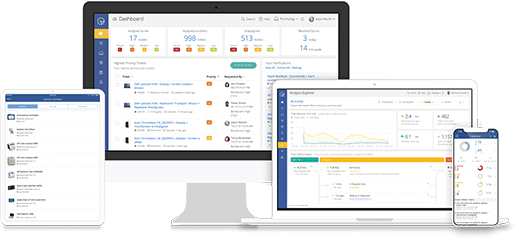
Tools like Incident IQ offer asset management and reporting to help IT admins, IT teams, and school facility managers find out the status and location of their devices so they can be serviced and repaired before any major issues arise. In the past, device management was a tedious and cumbersome process that involved a lot of manual tracking and large Excel sheets. By centralizing and automating the monitoring process, tools like Incident IQ help streamline the process while also offering complete visibility of your devices.
This is not only beneficial when it comes to device maintenance but also an important key to student safety; by monitoring and tracking your school’s Chromebooks in real-time, you can take prompt action in the event a student or unauthorized person tries to tamper with the device.
Ensuring Internet Safety for Kids: School Recommendations for Parents
While there are steps that schools can take to keep students safe online, internet safety is something that requires the cooperation of parents as well. Parents must be vigilant to ensure their child’s safety when using school Chromebooks just like they would any other device. With that in mind, here are three tips schools can use to ensure parents are playing their role:
1. Understanding the Risks
The biggest key to getting parents involved with internet safety is making sure they understand the risks. Explain to parents the various online risks students might encounter while using Chromebooks. These include exposure to malware, inappropriate content, and online predators.
2. Setting Up Parental Controls
Schools should encourage parents to use built-in Chromebook features and third-party software to set up parental controls on their children’s devices. Tools like a Family Link account and Safe Search can help keep students safe from the online risks mentioned above. Educating parents on these tools ensures they understand how to install and enable them effectively.
3. Creating a Safe Online Environment
Schools should also encourage parents to set ground rules for Chromebook usage to further ensure a safe and productive experience for students. This includes setting rules for screen time, what websites students are and are not allowed to visit, and discouraging tampering with Chromebooks. Regular check-ins and open communication between parents and students regarding online activities, screen time, and safety ensures a safe and productive online environment for students using school Chromebooks.
Setting Up School Chromebooks with Incident IQ
Effectively managing and deploying Chromebooks in schools is crucial for modern educational institutions. Whether you’re setting up devices for a new school year, upgrading technology infrastructure, or addressing ongoing maintenance needs, it’s important that you follow these device management protocols on all Chrome devices. By setting up and monitoring Chromebooks using these steps, your district can facilitate student learning and safety, support teacher instruction, and help IT professionals efficiently manage devices.
Consider Incident IQ, which integrates expertly with Chromebooks and other student devices, enabling you to set up and manage the tools your students need. Our software allows you to track Chromebooks, assign work orders, assist students and teachers, and even provide data to their administrators all within a single application.
Ready to see it in action? Schedule a demo to learn how Incident IQ can streamline your Chromebook setup and management process, or visit our Chromebooks resource hub for even more helpful tips and articles.