































Chromebooks are a top choice for K-12 schools, but managing them at scale comes with real challenges. IT teams need advanced tools to keep student Chromebooks secure, organized, and working in the classroom. From tracking devices to supporting students and staff, smart device management is key to running an efficient edtech program.
This guide walks through what school districts need to know about managing Chromebooks district-wide and how the right tools can make the job easier.
Why Chromebook Devices Dominate K-12 Schools
Across the country, schools use Chromebooks as their go-to student device—and for good reason. Compared to other options, Chromebooks are budget-friendly and easy to roll out in bulk. Most models are lightweight and sturdy enough for everyday classroom use, which makes them a smart pick for students of all ages.
Chromebook setup is simple, especially for IT admins managing large enrollments. ChromeOS boots up fast and runs smoothly on lower-cost hardware, which helps districts stretch their budgets without sacrificing performance. They also work well with Google Workspace, giving students and teachers quick access to classroom tools like Docs, Sheets, and Google Classroom.
Because school Chromebooks are cloud-based, there’s less risk of losing work to local errors. The operating system is also locked down by design, making it easier to protect devices from malware or tampering. With all of these benefits, it’s no surprise Chromebooks continue to dominate in K–12 classrooms.
The Need for Effective Student Chromebook Device Management
Chromebook management software allows schools to track thousands of student devices with ease, including who’s using them, what condition they’re in, and where they are. It allows staff to enroll and organize managed devices, set up security rules, and handle issues quickly. This not only protects student data but also keeps learning on track. When a device goes missing or breaks, support teams can step in without delay.
It also gives schools the data they need to plan ahead. With better visibility into device usage, repairs, and replacements, admins can make smarter decisions that save time and reduce costs, especially in busy districts.
Benefits of Chromebook Device Management in K-12 Schools
From reducing support tickets to improving student safety, Chromebook management tools support a better school day in every classroom. Here’s how those benefits show up where it matters most.
- Simpler device setup and enrollment: Setting up a Chromebook can be easier than other devices due to remote enrollment and automated configuration tools. This means schools can quickly assign devices and apply apps and settings for each grade level or classroom.
- Stronger data privacy and compliance: Admins can control what data is stored and shared, keeping schools compliant with privacy laws. Security settings can also be updated across all devices to protect student information.
- Better student safety and monitoring: School management software makes it easy to roll out acceptable-use policies, apply content filters, and restrict apps. Real-time monitoring also helps staff spot unsafe behavior or policy violations right away.
- Increased classroom efficiency: Device management tools prevent tech issues before they start, which keeps lessons on track. Teachers and technical teams can monitor screens, push fixes, and limit distractions.
- Easier support for IT teams: IT teams can track devices, check their status, and fix issues remotely, reducing the need to pull devices from classrooms. This lowers support requests and gives IT teams more time for other tasks.
- Flexibility to scale 1:1 programs: As budgets shift and priorities change, device management gives schools the tools to scale 1:1 programs up or down. Admins can audit usage, track which devices are in good shape, and identify where one-to-one classrooms have the greatest impact, helping leaders adjust plans without wasting time or money.
- Long-term cost savings: Device management tools help extend Chromebook lifespans by preventing theft or major damage. Schools can view in-depth maintenance history and understand the total cost of ownership, making it easier to decide which devices to replace with more budget-friendly models or recycle. Recycling usable devices helps stretch limited budgets and reduce unnecessary spending.
Best Practices for Classroom Management of ChromeOS Devices
Classroom management starts with setting up Chromebooks for schools in a way that supports both students and staff. When IT teams prepare devices with real classroom use in mind, it cuts down on support requests and protects learning time.
These best practices give school districts better control of ChromeOS devices and improve daily classroom tech use.
Pre-Configure Devices Before Rollout
Pre-configuring Chromebooks before students use them prevents common technical issues. IT staff can install software, set permissions, connect Wi-Fi, and apply content filters before devices reach classrooms. This avoids login problems and delays on the first day of use. With everything ready in advance, teachers can start lessons on time, keeping students focused and minimizing the need for troubleshooting during class.
Use Naming Conventions and Tags for Tracking
Using clear naming conventions helps schools manage large numbers of devices more effectively. Schools can label each Chromebook with a simple format, like initials, grade level, and a number, for quick identification. Asset tagging and tracking details such as assigned users, storage locations, and device conditions build on this system, making it easier to locate devices and keeping Chromebook inventory management on track.
Assign Devices to Students or Classrooms
Assigning Chromebooks to specific students or classrooms improves accountability. Schools can use asset management tools to link each device to a student ID or classroom roster. This allows staff to track missing devices and review usage history. It also simplifies troubleshooting and repairs since IT teams can quickly see who last used a device.
Enable Real-Time Monitoring of Student Screens
Real-time screen monitoring helps teachers keep students focused during lessons. With monitoring tools, teachers can view each screen to make sure every student stays on task. This type of monitoring blocks students from accessing unrelated websites or apps during class. It also lets teachers redirect students when needed, without calling in IT staff.
Manage Apps, Updates, and Notifications Remotely
Remote asset management for schools gives tech teams the ability to keep devices running efficiently without disrupting class. By scheduling app installs, system updates, and notification changes after school hours, schools can avoid slowdowns during lessons. These tools also block distracting pop-ups and alerts, allowing students to work without unnecessary interruptions. This method maintains a steady learning environment and cuts down on interruptions for students and teachers.
Plan for Long-Term Device Deployment
Planning for long-term device deployment helps schools manage technology needs throughout the year. With device tracking tools, schools can identify which Chromebooks can be recycled or reissued, helping make the most of limited resources.
A clear replacement plan is also key. Most schools follow a 5–7 year replacement cycle, but without the right tools, devices are often swapped out by the school or schedule, not by actual condition or warranty status. Using accurate device data helps schools replace only what’s necessary, avoid wasting funds on working devices, and stay ahead of tech needs without unnecessary disruptions.
Must-Have Features in Chromebook Management Software
Choosing the right Chromebook management software isn’t just about convenience—it’s about making sure student devices stay secure and aligned with school policy. With the right features, schools can stay organized, manage devices effectively, and respond quickly when problems arise.
Here are the features that matter most when selecting a device management platform for student Chromebooks.
Full Device and App Visibility
When hundreds or thousands of student devices are in use, districts need a reliable way to track them all. A centralized dashboard gives a clear view of each device’s location, status, and installed apps. This visibility helps IT monitor for issues, ensure compliance with school policies, and simplify replacements.
Your school inventory management system should integrate with tools like your student information system (SIS) and asset management platform to automatically link devices to the correct students or classrooms and keep records consistent across systems. With connected systems in place, tech teams can respond faster and make smarter decisions about device use and replacement planning.
Flexible Reporting Options
Reporting features aren’t just for compliance—they’re key to smarter, more efficient school operations. Custom asset management reports give IT teams the data they need to prepare for audits, track repairs, and plan future device purchases. When schools can easily generate reports on device usage and repair trends, they’re better equipped to optimize budgets and improve support. Strong reporting tools also reduce the guesswork involved in managing large tech programs. Whether it’s identifying which devices need replacement or proving compliance during an audit, flexible reporting turns raw data into clear, actionable insights.
Tools to Easily Lock Devices and Erase Data
Lost or stolen student devices are inevitable, but they don’t have to be a major security risk. With built-in tools to lock devices and erase data remotely, Chromebook management software helps schools protect sensitive student information in seconds. These features are especially important in districts with high device volume, where delays in response can lead to larger issues. Therefore, if a student forgets a Chromebook on the bus or a device goes missing between campuses, tech teams can immediately take control of the device.
Remote Help for Students and IT Teams
When device problems stall learning, fast support is everything, but most school districts don’t have the staff to respond in person every time something breaks. That’s where remote asset management makes a big difference.
With remote access tools, IT teams can troubleshoot issues, reset passwords, reinstall apps, and run diagnostics without physically handling the device. This reduces classroom disruptions and speeds up fixes. For schools with large campuses or limited support staff, remote tools make it possible to provide fast, reliable help across every building without the lag time or added workload.
Using Google Admin Console vs. School Management Software
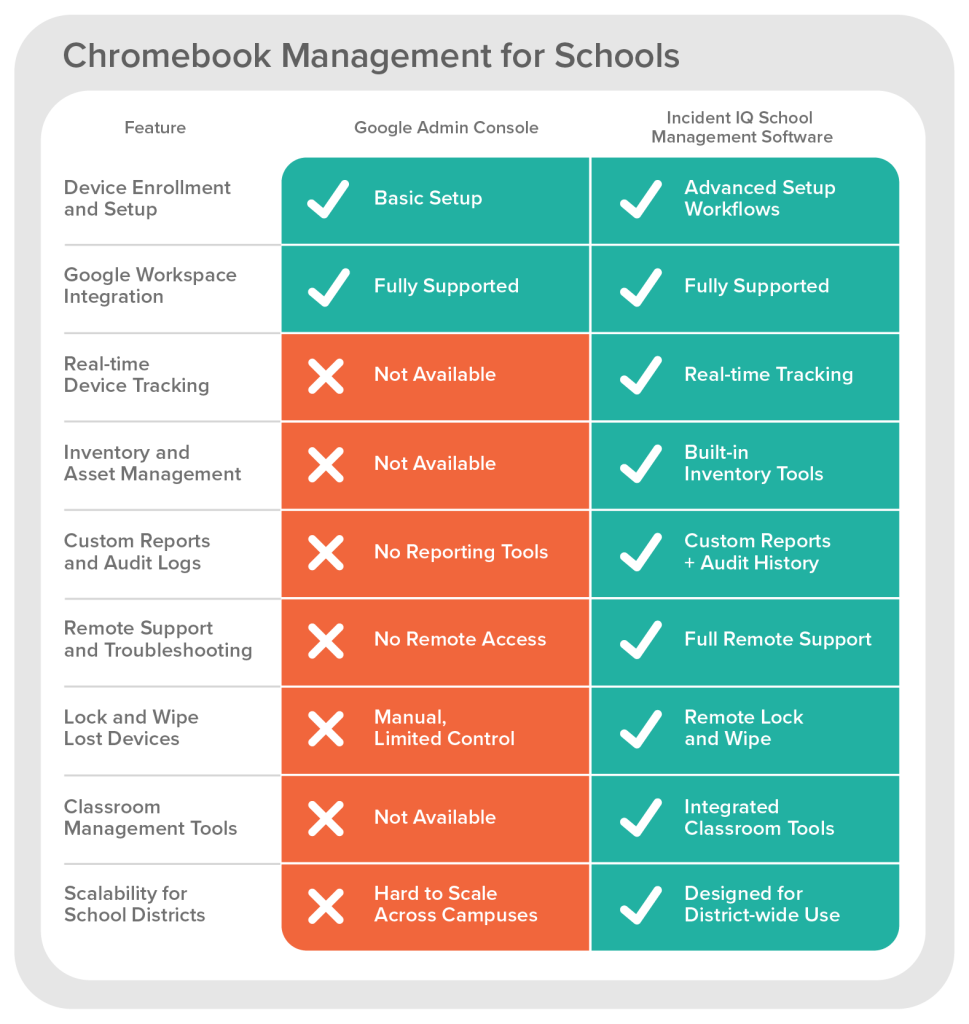
Google Admin Console is often a starting point for managing school Chromebooks. It works well for basic tasks like enrolling devices and integrating with Google Workspace for Education. When paired with the Chrome Education Upgrade, it gives schools more control over apps and network settings. However, that built-in functionality only goes so far.
For schools that need detailed reporting, asset management, and stronger classroom tools, a dedicated school management solution is a better fit. Full-featured school management software goes beyond simple configuration. It offers better visibility and tools built to meet the scale and complexity of K–12 environments.
To decide what’s right for your district, use the visual below to compare capabilities and find the level of management that fits your needs.
Manage Chromebooks Easily with Incident IQ
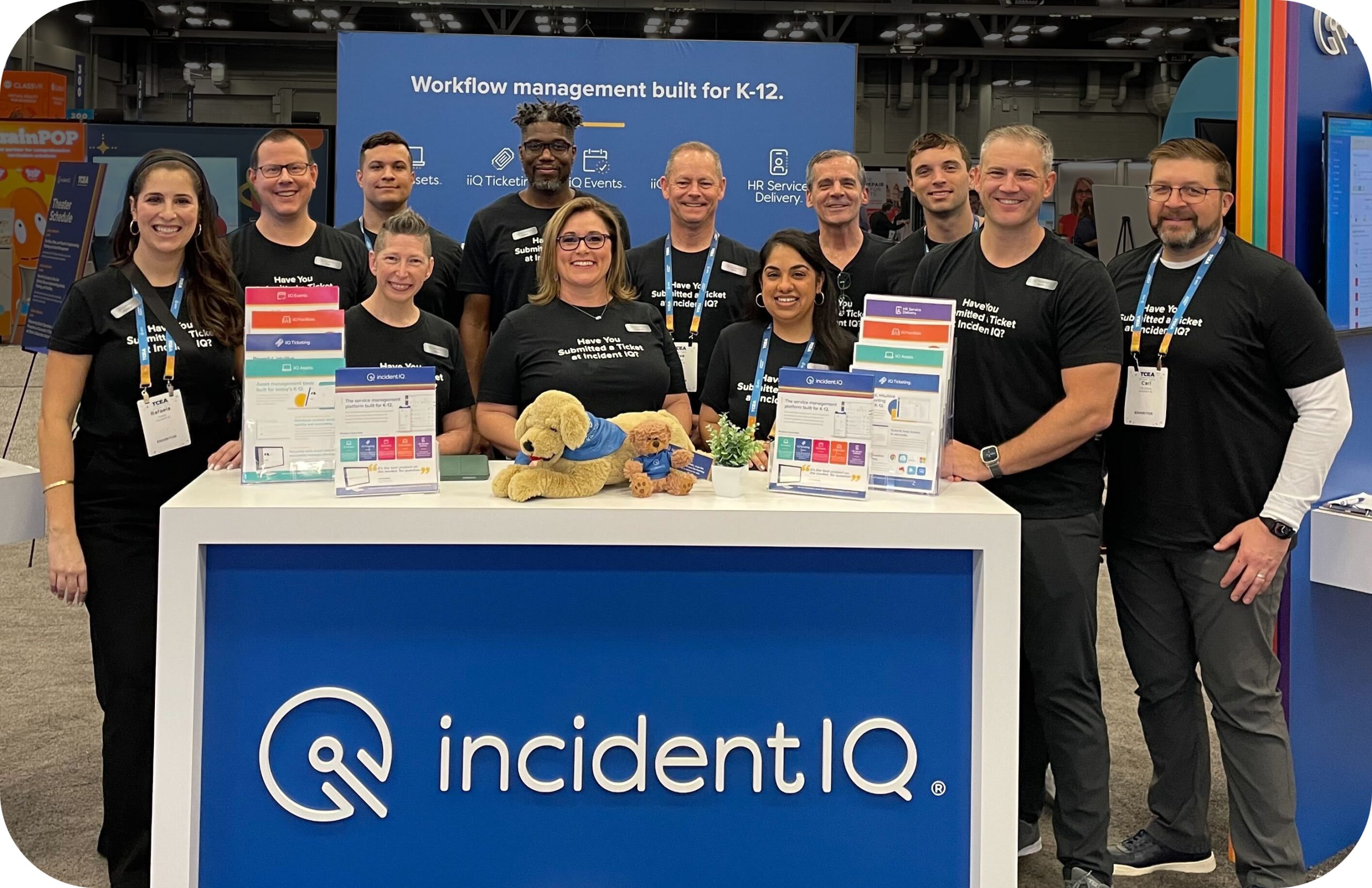
Incident IQ helps schools manage Chromebooks more efficiently by combining real-time tracking, inventory tools, and purpose-built asset management software for schools. IT staff can quickly see where each device is, who’s using it, and what condition it’s in without switching between systems. When something breaks or goes missing, support teams can act fast using tools built into the same platform.
The system connects with Google Admin Console and pulls in data from Google Workspace so schools don’t have to start from scratch. It extends the functionality districts already rely on, adding features like ticketing and detailed reporting so schools can make smarter decisions.
Whether you’re managing a few hundred devices or several thousand, the right tools can make all the difference. Incident IQ helps schools work more efficiently and stay ahead of device needs. If you’re ready to save time and gain more control, schedule a demo today.