


























Nowadays, Chromebooks are the norm in classrooms across the United States. According to Education Week, by March 2021, 90% of middle and high schools and 85% of elementary schools nationwide are implementing a 1:1 device program for students.
Chromebooks offer many benefits in K-12 school settings, but like any digital device, they can pose potential risks for young users. That’s why it can be important for schools to install asset management and monitoring software when setting up Chromebooks to help mitigate these risks.
Importance of Monitoring School Chromebooks
Despite Chromebooks’ overall usefulness, ChromeOS may inadvertently risk student exposure to inappropriate or harmful online content.
As an Internet-based operating system, ChromeOS can leave learners—especially younger ones—vulnerable. That’s why tracking Chromebooks and monitoring online activities is critical for ensuring a safe learning environment without having to sacrifice student productivity. Schools can combat this risk with one easy and effective solution: monitoring tools that ensure effective web filtering and content filtering.
Below we explore the best Chromebook monitoring software to have in your arsenal when deploying student devices.
8 Best Chromebook Monitoring Software Options
To provide a fair comparison between the Chromebook monitoring software options outlined below, we’ll be looking at each software in terms of key features, pricing, user experience, and use cases.
GoGuardian
iiQ Score: ⭐⭐⭐☆☆
We love GoGuardian’s real-time mental health monitoring features. Web filtering capabilities are average in comparison with other platforms. Subscriptions and pricing options may present a barrier for those with large districts.
Features: Real-time monitoring and activity reports, web filtering, remote control, and classroom management tools. GoGuardian also offers student mental health monitoring and suicide prevention tools.
Pricing: Subscription-based with various tiers, offering flexible options for schools and organizations. Custom quotes are required.
User Experience: Users highly rate the software for its user-friendliness, effectiveness in maintaining classroom order, and robust features. It excels at filtering out inappropriate content and maintaining safe student learning environments.
Use Cases: Primarily used in educational settings for classroom management and ensuring student online safety.
Securly
iiQ Score: ⭐⭐⭐☆☆
Securly’s social media scanning and affordable pricing make it stand out for us amongst these options. Its web filtering capabilities may feel basic compared to others.
Features: Web filtering to block inappropriate content, real-time activity monitoring, social media scanning for potential issues, administrator alerts for concerning behavior, and student wellness tools.
Pricing: Securly offers subscription-based pricing with educational discounts. Schools typically pay around $7 per user annually, making it a cost-effective choice for many districts.
User Experience: Users praise Securly for its comprehensive approach to student safety and effective reporting tools. Users also highly rate the detailed activity reports and ability to reduce online bullying through its social media monitoring function.
Use Cases: Widely adopted in K-12 schools for protecting students from online threats and ensuring a safe learning environment.
Netop Vision
iiQ Score: ⭐⭐⭐⭐☆
We love Netop Vision’s easy-to-use classroom management tools and remote control capabilities. The absence of mental health monitoring may be a drawback for some users.
Features: Classroom management, screen sharing, real-time monitoring, remote control, and collaborative tools. Netop Vision excels in remote and screen monitoring, offering advanced features such as screen and keyboard locking.
Pricing: Available as a one-time purchase or through a subscription model. Pricing starts at $3 per year.
User Experience: Praised for its powerful classroom management features and ease of use, particularly in interactive learning environments. Teachers and administrators appreciate the software’s focus on effective real-time monitoring without offering too many unnecessary features.
Use Cases: Ideal for interactive classrooms where teachers need to engage with students and monitor their activities closely.
Blocksi Manager
iiQ Score: ⭐⭐⭐⭐☆
Blocksi Manager excels in web filtering and analytics. Customization options are a strong point, though some users find the interface less intuitive.
Features: Web filtering, analytics, classroom management, notifications, YouTube control, and advanced content filtering. Features are regularly updated.
Pricing: Subscription-based with flexible pricing tailored specifically for schools.
User Experience: Praised for customization options, educational support, and real-time analytics. Educators highly value its detailed information about sites students have tried visiting, including screenshots of those webpages.
Use Cases: Widely used in schools for content filtering and managing student online behavior.
Lightspeed Systems
iiQ Score: ⭐⭐⭐⭐☆
We love Lightspeed Systems for delivering reliable monitoring and web filtering. Some users mention the learning curve for larger deployments.
Features: Real-time monitoring, web filtering, activity logging, detailed reports, and cloud-based management.
Pricing: Subscription-based plans, starting at $4.99 per license per year.
User Experience: Known for reliability, effective filtering, and ease of deployment across large networks. As the name suggests, this software allows educators to act fast in real time. Teachers have praised it for the ability to message a distracted student, which makes this an invaluable piece of edtech for classroom monitoring.
Use Cases: Suitable for both educational and corporate environments where robust security and monitoring is required.
Bark
iiQ Score: ⭐⭐⭐☆☆
Bark’s advanced AI makes it a standout for social media monitoring and mental health alerts. Its pricing may present challenges for large districts.
Features: Social media monitoring, screen time management, content filtering, alerting, and mental health monitoring. Bark’s advanced AI-based model allows for sophisticated monitoring of student activity, including filtering for specific language.
Pricing: Monthly subscription with different plans for families and schools.
User Experience: Its focus on student mental health, online safety, and comprehensive parental controls has received ample positive feedback. Educators praise Bark’s specific design for Chromebooks, which prevents users from bypassing it on student devices.
Use Cases: Primarily used in schools and homes to monitor and protect children’s online activities and well-being.
Hapara
iiQ Score: ⭐⭐⭐⭐☆
Hapara integrates seamlessly with Google Workspace, offering streamlined classroom management. However, pricing could be a concern for smaller schools.
Features: Classroom management, web filtering, real-time monitoring, document sharing, and Google Workspace integration.
Pricing: Subscription-based with different plans designed for schools. Pricing starts at $1,500.
User Experience: Well-regarded for its seamless integration with Google Workspace and its ease of use for educators. Educators also praise that Hapara gives them control over how long students have access to a website/drive.
Use Cases: Favored in schools that heavily use Google Workspace tools, providing a streamlined approach to managing student activities.
Qustodio
iiQ Score: ⭐⭐⭐☆☆
Qustodio’s strong parental controls and activity reports are excellent for both schools and families. It may lack more advanced educational tools found in other platforms.
Features: Web filtering, activity logging, screen time management, app monitoring, and detailed usage reports. Additional features include a panic button and SMS monitoring.
Pricing: Subscription-based with plans for both families and schools.
User Experience: Praised for comprehensive parental controls, user-friendliness, and detailed reporting. Qustodio also receives high marks for its cyberbullying prevention capabilities.
Use Cases: Widely adopted by parents and schools to monitor and manage children’s online activities, ensuring a safe and controlled digital environment.
How to Use Chromebook Monitoring Software
Depending on the software you choose, you’ll need to follow these steps below to ensure your monitoring tool is configured correctly on student Chromebooks:
- Install the Software. Follow the installation instructions specific to your chosen software.
- Configure Settings: Depending on the software, customizable options will allow you to set specific web filtering, enable real-time monitoring, automated reporting, and alerts for specific activities. Integrate with your asset management software for seamless functionality and enhanced oversight across platforms.
- Monitor and Review: Use the dashboard to monitor student activity in real-time, review logs, and intervene with remote control features when necessary.
- Communicate Policies: Clearly inform students about the monitoring software, its purpose, and expectations around appropriate Chromebook usage.
- Maintain Privacy and Security:Ensure data privacy by limiting access to authorized personnel and securely handling all collected information.
Ongoing monitoring also prevents tampering with Chromebooks or data integrity from students or third parties. All Chromebooks should be regularly inspected for signs of physical damage or data corruption to ensure the safety of students and extend the lifespan of your Chromebooks.
Selecting the Best Chromebook Monitoring Software for Your Needs
As you research Chromebook monitoring software, pay attention to reviews from other educational institutions and what they tell you about each software’s track record of usability, feature flexibility, user support, and privacy considerations. Once you’ve chosen and installed your monitoring tool, it’s worthwhile to remember that while monitoring software is a powerful tool, it should be used thoughtfully to enhance—not hinder—the learning environment.
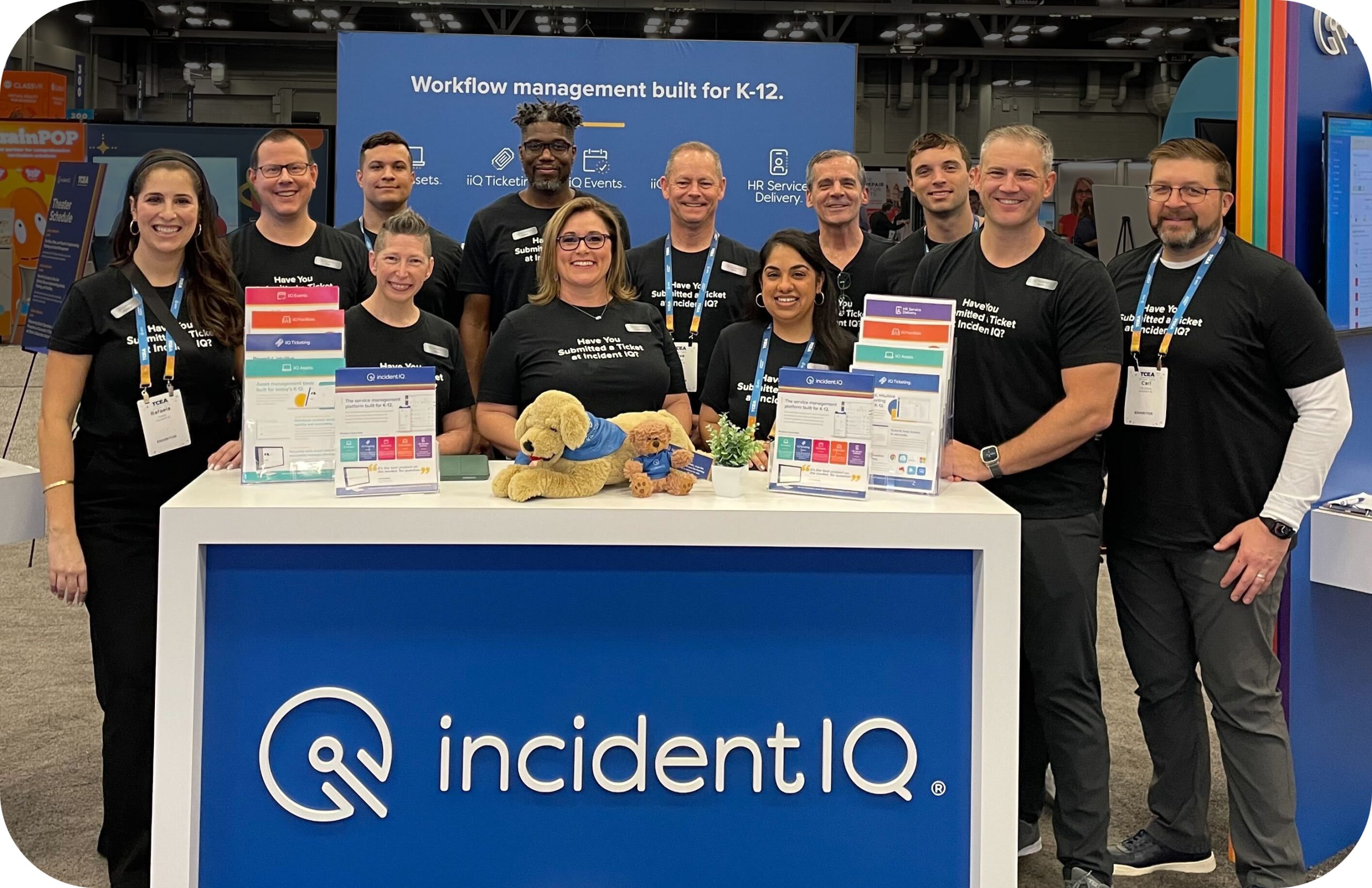
Incident IQ provides school asset tracking and management software built specifically for K-12 schools to streamline the deployment, collection, and management of devices. It offers tools for tracking the full lifecycle of assets, from inventory management and remote tracking to smart audits and detailed reporting. Visit our comprehensive catalog on all of Incident IQ’s supported integrations, or visit our resource hub for more information on managing Chromebooks.